Pages

Showing posts with label Basics of computer. Show all posts

Thursday, August 30, 2012

Software – System Software and Application Software


A system software is any computer software which manages and controls computer hardware so that application software can perform a task. Operating systems, such as Microsoft Windows, Mac OS X or Linux, are prominent examples of system software. System software contrasts with application software, which are programs that enable the end-user to perform specific, productive tasks, such as word processing or image manipulation.

System software performs tasks like transferring data from memory to disk, or rendering text onto a display device. Specific kinds of system software include loading programs, operating systems, device drivers, programming tools, compilers, assemblers, linkers, and utility software.

Software libraries that perform generic functions also tend to be regarded as system software, although the dividing line is fuzzy; while a C runtime library is generally agreed to be part of the system, an OpenGL or database library is less obviously so.

If system software is stored on non-volatile memory such as integrated circuits, it is usually termed firmware while an application software is a subclass of computer software that employs the capabilities of a computer directly and thoroughly to a task that the user wishes to perform. This should be contrasted with system software which is involved in integrating a computer's various capabilities, but typically does not directly apply them in the performance of tasks that benefit the user. In this context the term application refers to both the application software and its implementation.

A simple, if imperfect analogy in the world of hardware would be the relationship of an electric light bulb (an application) to an electric power generation plant (a system). The power plant merely generates electricity, not itself of any real use until harnessed to an application like the electric light that performs a service that benefits the user.

Typical examples of software applications are word processors, spreadsheets, and media players.

Multiple applications bundled together as a package are sometimes referred to as an application suite. Microsoft Office and OpenOffice.org, which bundle together a word processor, a spreadsheet, and several other discrete applications, are typical examples. The separate applications in a suite usually have a user interface that has some commonality making it easier for the user to learn and use each application. And often they may have some capability to interact with each other in ways beneficial to the user. For example, a spreadsheet might be able to be embedded in a word processor document even though it had been created in the separate spreadsheet application.

User-written software tailors systems to meet the user's specific needs. User-written software include spreadsheet templates, word processor macros, scientific simulations, graphics and animation scripts. Even email filters are a kind of user software. Users create this software themselves and often overlook how important it is.

In some types of embedded systems, the application software and the operating system software may be indistinguishable to the user, as in the case of software used to control a VCR, DVD player or Microwave Oven. System software is computer software designed to operate the computer hardware and to provide a platform for running application software.

Memory and Storage Devices

Memory storage devices are devices that hold electronic file information to be retrieved at a later time. In some cases, information may need to be transferred or transported for use by another person or at a later time. For example, if you are working on a report in one location, such as an office, and would like to complete the report at home after hours, you would save the file to a memory storage device and take it with you to access later.

RAM vs ROM
Difference between RAM and ROM
• RAM is Random Access Memory, while ROM stands for Read Only Memory.
• RAM is volatile and is erased when the computer is switched off. ROM is non-volatile and generally cannot be written to.
• RAM is used for both read and write while ROM is used only for reading.
• RAM needs electricity to flow to retain information while ROM is permanent.
• RAM is analogous to a blackboard on which information can be written with a chalk and erased any number of times, while ROM is permanent and can only be read. One example is BIOS (basic input output system) that runs when computer is switched on and it prepares disk drives and processor to load OS from disk.

Types of Memory Storage Devices: The Early Years
There were a number of items to consider for memory storage devices when the necessity of transferring files began. Initially, although now practically defunct, there was a floppy disc, which was a large media source that could be inserted into a disc drive of a computer. The floppy was over 5 inches long and comprised of flimsy material. Hard storage discs took the place of the floppy disc to make it more sturdy, so as not to damage as easily. They were 3.5 inches and constructed of a hard outer layer of plastic.

Types of Memory Storage Devices: Evolution of the Computer
Once computers were redesigned for personal use, the inclusion of disk drives became less available, evolving to accommodate Compact Disc Read-Only Memory, or CD-ROMs. CD-ROMs are silver, circular shaped storage devices capable of housing not just files, but videos, images, digital information and audio files for playback, storage, retrieval and transference. Digital Video Discs or Digital Versatile Discs (DVD) were introduced to hold 15 times the information and transfer information 20 times faster.

Portable Memory Storage Devices
Although discs of both types are still used as memory storage devices to save, transport and retrieve information, there are a number of smaller, higher data storage options available for the same use. Universal Serial Bus, or USB drives, are small devices that plug into terminals directly on the computer's incoming socket. The USB drive can fit in the palm of a hand and is available in a number of high-capacity versions.

Larger Memory Storage Devices.
In an effort to preserve the memory and speed of a computer's operating system, larger memory storage devices that plug directly into a computer's drive socket, allowing a transfer of as many files as space will allow. These are called External Memory Storage Drives and can be unplugged from an operating system at anytime and stored in a separate location for safekeeping.

Concepts of Hardware- Input and Output Devices

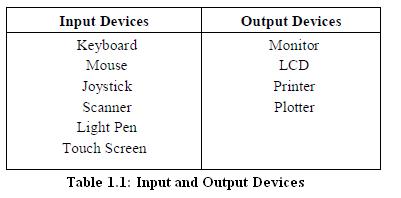
The computer will be of no use unless it is able to communicate with the outside world. Input/Output devices are required for users to communicate with the computer. In simple terms, input devices bring information INTO the computer and output devices bring information OUT of a computer system. These input/output devices are also known as peripherals since they surround the CPU and memory of a computer system.

Input devices and output devices are computer hardware that enable an operator to interact with the computer. Without input devices, a computer user would not be able to feed instructions to, or send and store information in, a computer; without output devices, the computer would not be able to give processed information back to the user.

Some commonly used Input/Output devices are listed in table below.

Input Devices
(a) Keyboard
It is a text base input device that allows the user to input alphabets, numbers and other characters. It consists of a set of keys mounted on a board.

Alphanumeric Keypad
It consists of keys for English alphabets, 0 to 9 numbers, and special characters like + − / * ( ) etc.

Function Keys
There are twelve function keys labeled F1, F2, F3… F12. The functions assigned to these keys differ from one software package to another. These keys are also user programmable keys.

Special-function Keys
These keys have special functions assigned to them and can be used only for those specific purposes. Functions of some of the important keys are defined below.

Enter
It is similar to the ‘return’ key of the typewriter and is used to execute a command or program.

Spacebar
It is used to enter a space at the current cursor location.

Backspace
This key is used to move the cursor one position to the left and also delete the character in that position.

Delete
It is used to delete the character at the cursor position.

Insert
Insert key is used to toggle between insert and overwrite mode during data entry.

Shift
This key is used to type capital letters when pressed along with an alphabet key. Also used to type the special characters located on the upper-side of a key that has two characters defined on the same key.

Caps Lock
Cap Lock is used to toggle between the capital lock features. When ‘on’, it locks the alphanumeric keypad for capital letters input only.

Tab
Tab is used to move the cursor to the next tab position defined in the document. Also, it is used to insert indentation into a document.

Ctrl
Control key is used in conjunction with other keys to provide additional functionality on the keyboard.

Alt
Also like the control key, Alt key is always used in combination with other keys to perform specific tasks.

Esc
This key is usually used to negate a command. Also used to cancel or abort executing programs.

Numeric Keypad
Numeric keypad is located on the right side of the keyboard and consists of keys having numbers (0 to 9) and mathematical operators (+ − * /) defined on them. This keypad is provided to support quick entry for numeric data.

Cursor Movement Keys
These are arrow keys and are used to move the cursor in the direction indicated by the arrow (up, down, left, right).


(b) Mouse
The mouse is a small device used to point to a particular place on the screen and select in order to perform one or more actions. It can be used to select menu commands, size windows, start programs etc.
Mouse
The most conventional kind of mouse has two buttons on top: the left one being used most frequently.
Mouse Actions
Left Click : Used to select an item.
Double Click : Used to start a program or open a file.
Right Click : Usually used to display a set of commands.
Drag and Drop : It allows you to select and move an item from one location to another. To achieve this place the cursor over an item on the screen, click the left mouse button and while holding the button down move the cursor to where you want to place the item, and then release it.

Joystick
(c) Joystick
The joystick is a vertical stick which moves the graphic cursor in a direction the stick is moved. It typically has a button on top that is used to select the option pointed by the cursor. Joystick is used as an input device primarily used with video games, training simulators and controlling robots.

(d) Scanner
Scanner is an input device used for direct data entry from the source document into the computer system. It converts the document image into digital form so that it can be fed into the computer. Capturing information like this reduces the possibility of errors typically experienced during large data entry.

Hand-held scanners are commonly seen in big stores to scan codes and price information for each of the items. They are also termed the bar code readers.

(e) Barcodes
A barcode is a set of lines of different thicknesses that represent a number. Bar Code Readers are used to input data from bar codes. Most products in shops have barcodes on them. Barcode readers work by shining a beam of light on the lines that make up the bar code and detecting the amount of light that is reflected back.

(f) Light Pen
It is a pen shaped device used to select objects on a display screen. It is quite like the mouse (in its functionality) but uses a light pen to move the pointer and select any object on the screen by pointing to the object. Users of Computer Aided Design (CAD) applications commonly use the light pens to directly draw on screen.

(g) Touch Screen
It allows the user to operate/make selections by simply touching the display screen. Common examples of touch screen include information kiosks, and bank ATMs.

(h) Digital camera
A digital camera can store many more pictures than an ordinary camera. Pictures taken using a digital camera are stored inside its memory and can be transferred to a computer by connecting the camera to it. A digital camera takes pictures by converting the light passing through the lens at the front into a digital image.

(i) The Speech Input Device
The “Microphones - Speech Recognition” is a speech Input device. To operate it we require using a microphone to talk to the computer. Also we need to add a sound card to the computer. The Sound card digitizes audio input into 0/1s .A speech recognition program can process the input and convert it into machine-recognized commands or input.


Output Devices
Monitor
(a) Monitor
Monitor is an output device that resembles the television screen and uses a Cathode Ray Tube (CRT) to display information. The monitor is associated with a keyboard for manual input of characters and displays the information as it is keyed in. It also displays the program or application output. Like the television, monitors are also available in different sizes.

(b) Printer
Printers are used to produce paper (commonly known as hardcopy) output. Based on the technology used, they can be classified as Impact or Non-impact printers. Impact printers use the typewriting printing mechanism wherein a hammer strikes the paper through a ribbon in order to produce output. Dot-matrix and Character printers fall under this category.

A Printer
Non-impact printers do not touch the paper while printing. They use chemical, heat or electrical signals to etch the symbols on paper. Inkjet, Deskjet, Laser, Thermal printers fall under this category of printers.

When we talk about printers we refer to two basic qualities associated with printers: resolution, and speed. Print resolution is measured in terms of number of dots per inch (dpi). Print speed is measured in terms of number of characters printed in a unit of time and is represented as characters-per-second (cps), lines-per-minute (lpm), or pages-per-minute (ppm).

(c) Plotter
Plotters are used to print graphical output on paper. It interprets computer commands and makes line drawings on paper using multicolored automated pens. It is capable of producing graphs, drawings, charts, maps etc. Computer Aided Engineering (CAE) applications like CAD (Computer Aided Design) and CAM (Computer Aided Manufacturing) are typical usage areas for
plotters.

(d) Audio Output: Sound Cards and Speakers
The Audio output is the ability of the computer to output sound. Two components are needed: Sound card – Plays contents of digitized recordings, Speakers – Attached to sound card.

Basic Components of Computer

The processor is that part of the computer that does all the work of computation. It does this in collaboration with the computer's main memory where live data is kept and fetched by the processor for processing. A processor is distinguished by its speed measured in Gigahertz (GHz). The higher the speed, the faster the PC.

Main Memory stores live data and loses it once the power source is turned off. The processor fetches instructions or data from main memory to process. Generally, the more Random Access Memory (RAM) you have, the better the PC will run when using several programs at once. A typical office PC can run well with 512 megabytes (512MB) of memory and this is a good minimum specification.

The hard disk is used to store the data that you create. This may be your business data or data on class work for students or games. It has a larger capacity than the RAM. A typical office computer has about 40 gigabytes (40GB) of hard disk space. Larger data stores may require a larger capacity hard disk. Where that storage serves the purposes of several users in a network, the disk may be used to service those needs of users and may be set up as a Server. The file server (with accompanying software) may be mounted in a separate (dedicated) PC.

The monitor is the display screen. There are two types of monitor - flat screen or cathode ray tube. Flat screens are more expensive but are becoming more widely used as they use less desk space and generate less heat. Select at least a 17 inch monitor for desktop use.

The keyboard and mouse usually come as part of a bundle. They may come as connected (wired to the PC using a cable) or as a wireless device. The wireless devices make desktops neater.